
Operator manual
Complete install and operation guide for the YCtlX desktop app, version 2.27.1. Written to train someone who has never used it.
This manual covers the desktop app only, the one you install on the machine, on Windows or on macOS. If you are running YCtlX from a browser there are important differences, above all with file paths, and this is not the right document.
1. What YCtlX is, and what it is not
YCtlX is the VTR control for vMix List inputs. You use it to build the running order of a block, send it to vMix, and then drive it live: cue the next clip, roll it, pause it, and watch how much time is left on whatever is going out.
What it does:
- Builds video playlists, ordered by hand or by rundown code.
- Connects to vMix over the network, pulls its Lists in or pushes yours out.
- Cues, plays and pauses the clip loaded in each List.
- Shows the countdown on the on-air clip and vMix's real tally.
- Exports and imports
.m3u.
What it does NOT do, and this should be clear from day one:
- It does not play video. vMix plays the video. YCtlX is the remote: nothing on this screen is the signal.
- It shows no thumbnails and no picture preview. The vMix API does not offer them, so there is no way to show them.
- It does not mix audio. No mute, no faders here. That is vMix.
- It puts nothing on air by itself. Taking an input to Program is the switcher's job, not this app's.
Vocabulary
These terms run through the whole manual and they are what you will hear in the room.
| Deck | One playlist on screen, with its own transport and its own clock. The equivalent of a VTR. |
| Rack | The area where decks sit side by side. |
| List input | The List-type input that exists on the vMix side. A linked deck points at one of these. |
| Linked | A deck connected to a vMix List input. Unlinked decks are loose playlists with no transport. |
| Cue | Leave a clip loaded and stopped at 0:00, ready to roll. |
| Program | The on-air bus. Whatever is on Program is what the audience is watching. |
| Preview | The preview bus. Set up, but not on air. |
| Tally | The colour signal telling you which bus something is on: red Program, green Preview. |
| Rundown code | The filename prefix in the form 5A1-: show 5, segment A, story 1. |
2. Requirements
On the PC where you install YCtlX
- Windows 10 or 11, or macOS 10.15 or newer, with permission to install software. The macOS build comes in two files, one for Apple Silicon and one for Intel.
- Network access to the machine running vMix.
- Disk space: under 100 MB. The interface is drawn with the browser engine Windows and macOS already include, so the app carries none of its own.
- On Windows, WebView2. Windows 11 ships with it and on Windows 10 Edge installs it, so in practice it is already there; if it were missing, the installer fetches it. That is the only thing the install may want from the internet, and only once. macOS needs nothing extra: it draws with the engine the system already has.
On the vMix machine
- The vMix Web Controller must be on. In vMix:
Settings → Web Controller. Default port is 8088. - That machine's firewall must let that port through from the local network.
If the Web Controller is off, YCtlX can do nothing at all against vMix, no matter how healthy the network is.
What you do NOT need
- Internet. The whole app works with no route to the outside. Nothing is fetched remotely while it runs. The one exception is the ? button, which opens this manual at
yctlx.com/helpin your browser, and it is the only thing that stops working without it. See 4.5. - A server. The app needs no service running anywhere, other than vMix itself.
- A browser. The app is its own window.
- A username and password. There is no login anywhere.
Optional: ffprobe
If the PC has ffprobe installed and reachable on the PATH, YCtlX uses it as a last resort to read durations for formats the app's engine cannot decode, typically ProRes and most MXF. If it is not installed nothing bad happens: those clips just show --:-- in the duration column. That is not an error and does not need reporting.
3. Installation
Get the installer
One file per system, named for the version and the machine:
Windows        YCtlX_X.Y.Z_x64-setup.exe
macOS          YCtlX_X.Y.Z_aarch64.dmg      Apple Silicon (M1 and later)
               YCtlX_X.Y.Z_x64.dmg          Intel
where X.Y.Z is the version number. Ask whoever provides YCtlX for it.
On a Mac, if you are not sure which of the two you need: Apple menu → About This Mac. A chip that reads Apple M1, M2, M3 or later takes the aarch64 file; anything that says Intel takes the x64 one.
Before installing, check the number in the file name and confirm it is the version you expected. Once installed, the version can also be read inside the app, under ⚙ → About.
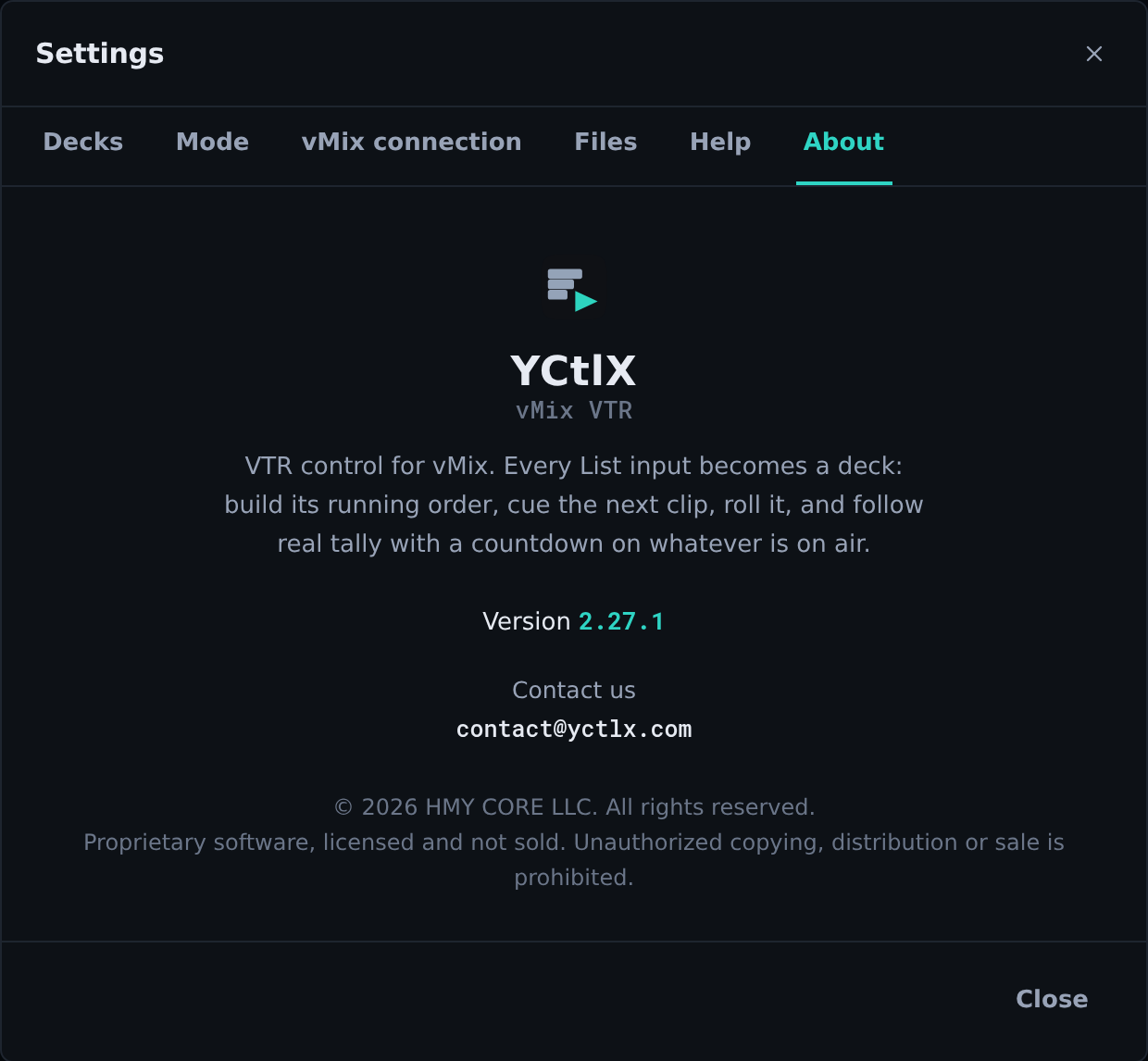
About tab, which is where you confirm which version is installed on that PC.That tab also carries the address to write to about anything that is not an operating problem: contact@yctlx.com. For operating problems, Help has support@yctlx.com.
Install on Windows
- Run the
YCtlX_X.Y.Z_x64-setup.exefile. - Windows asks for permission to install. The prompt names HMY CORE LLC as the publisher: the installer is digitally signed, so there is no unknown-publisher warning to click past.
- The wizard lets you choose the install folder. Unless you have a reason, keep the one it offers.
- It creates a desktop shortcut automatically.
- When it finishes, open YCtlX from the desktop or the Start menu.
Install on macOS
- Open the
.dmg. A window appears with the YCtlX icon and a shortcut toApplications. - Drag YCtlX onto the
Applicationsfolder. Running it from inside the disk image works, but the copy disappears when the image is ejected. - Eject the disk image and open YCtlX from
Applicationsor from Launchpad. - The first launch takes a few seconds longer than the rest: macOS checks the signature once and remembers it.
The app is signed and notarized by Apple, so it opens like any other program. There is no right-click → Open, and no Security preference to unlock.
If a warning appears anyway
A signed installer does not produce one, so treat it as a sign that this is not the file we published: an interrupted download, or a copy that has been through somebody's file server. Do not click past it. Get the installer again from the source that gave it to you, and if it happens twice, write to support@yctlx.com before installing.
The install is for the current user by default. If several people operate that machine under different accounts, each one gets their own installation and their own settings.
The app asks for no key and no activation: once the installer finishes, it opens ready to use. It needs no internet either, only your local network to reach vMix.
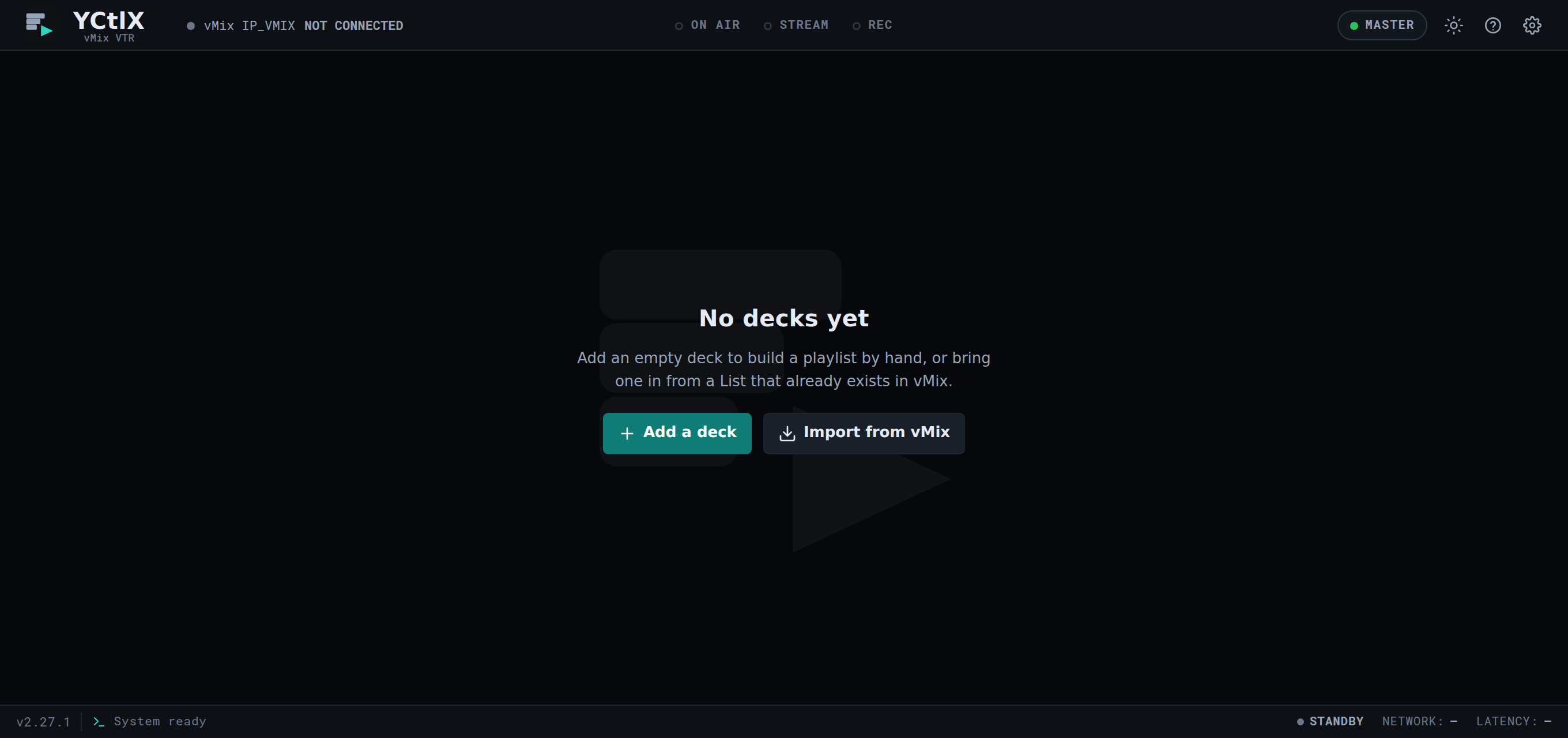
The app creates no deck when it opens. The empty screen offers Add a deck and, once you have saved a vMix address, Import from vMix. Before you have saved one, that second button says Set up vMix and takes you there. The first deck is your decision.
Updating to a new version
There is no auto-update. The app does not announce new versions and does not update itself. Updating means downloading the new installer and running it: on Windows it installs over the previous one, and on macOS you drag the new YCtlX onto Applications and let it replace what is there.
Updating keeps that PC's vMix settings and playlists. Nothing has to be re-entered.
Uninstalling
On Windows, uninstall like any other program, from Settings → Apps. On macOS, drag YCtlX from Applications to the Trash.
Neither one removes your settings or your playlists: those live in a folder of their own, and 12.1 says where. Delete it by hand if you want the machine left clean.
4. First-time setup, once per PC
All of this setup lives on this computer. It is not shared, not synced, it does not travel. Install YCtlX on another PC tomorrow and you do it again there.
Open settings with the ⚙ button in the top bar, or with Ctrl+B.
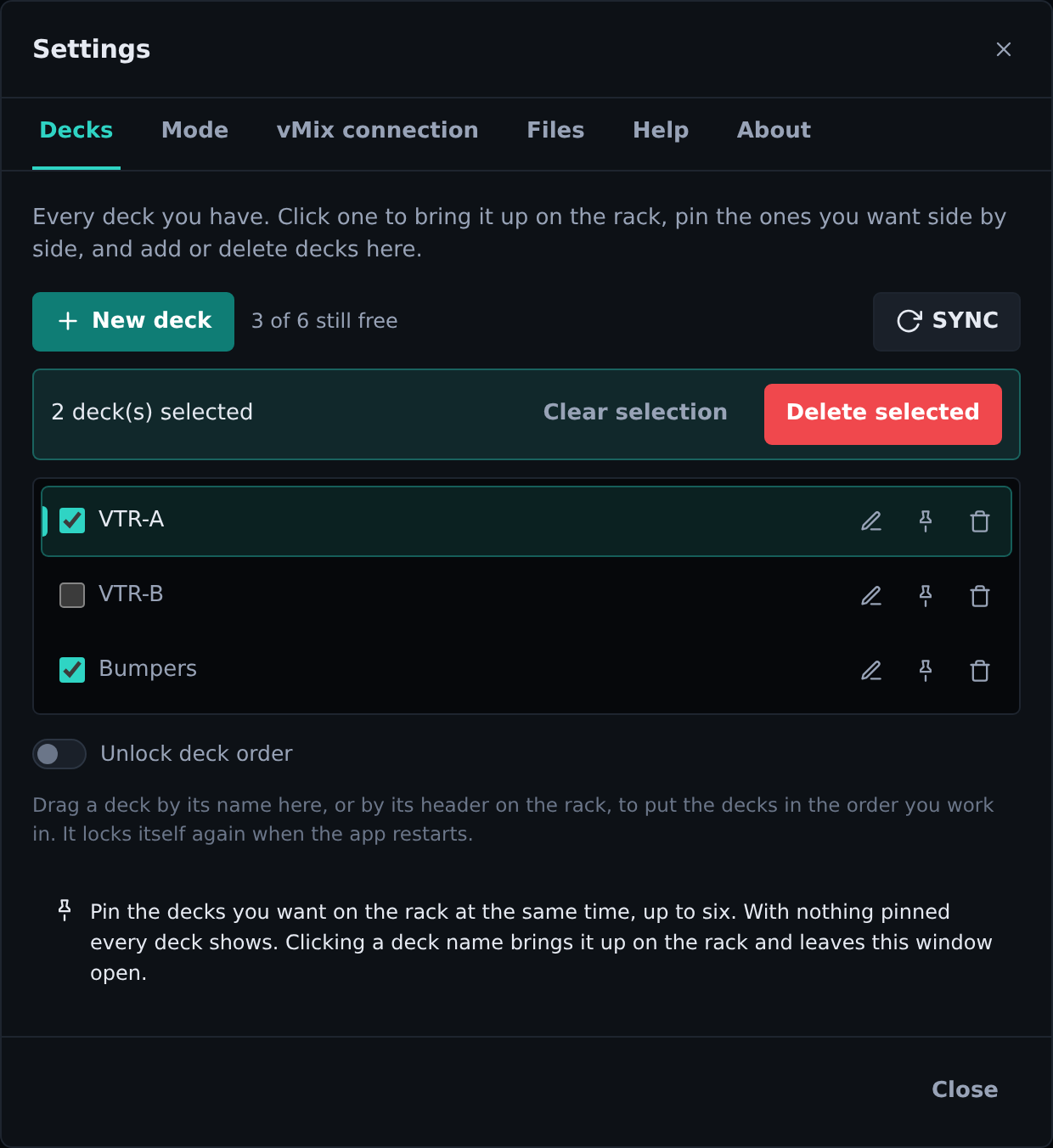
Decks tab: every deck, with the pin and delete buttons on each row, and SYNC at the right end of the top row.4.1 Mode tab: MASTER or CLIENT
The first decision on every machine. It defines what that PC is for.
| MASTER | The full control room. Connects to vMix, imports its Lists, cues, plays and pushes changes. This is the machine next to the switcher. |
| CLIENT | No connection to vMix at all. For building and ordering playlists and exporting them as .m3u. Everything that talks to vMix disappears from the screen. |
CLIENT is a real safety measure, not a tidier screen. On a machine in CLIENT, nothing you do can touch what is on air. It is the mode for the producer's PC, the writer's, or whoever builds the rundown from another office.
Switching modes destroys nothing: decks, clip order and vMix links stay intact and come straight back when you return to MASTER.
The mode is always visible in the top bar, next to the theme button. Clicking that indicator does not switch modes, it opens this settings tab. That is deliberate: dropping out of MASTER on a stray click mid-show would be the worst accident that button could cause.
4.2 vMix connection tab
Only appears in MASTER mode.
- In
vMix IP addresstype the IP of the machine running vMix, in the formx.x.x.x. Throughout this manual that address is written asIP_VMIX. - In
Portleave8088, unless the Web Controller port was changed in vMix. - Press
Test connection. If all is well you readConnected. N input(s) found in vMix.with the number of inputs vMix has at that moment. - Press
Save. Only then is it stored.
If Test connection fails, go to chapter 9, which lists every error message with its cause.
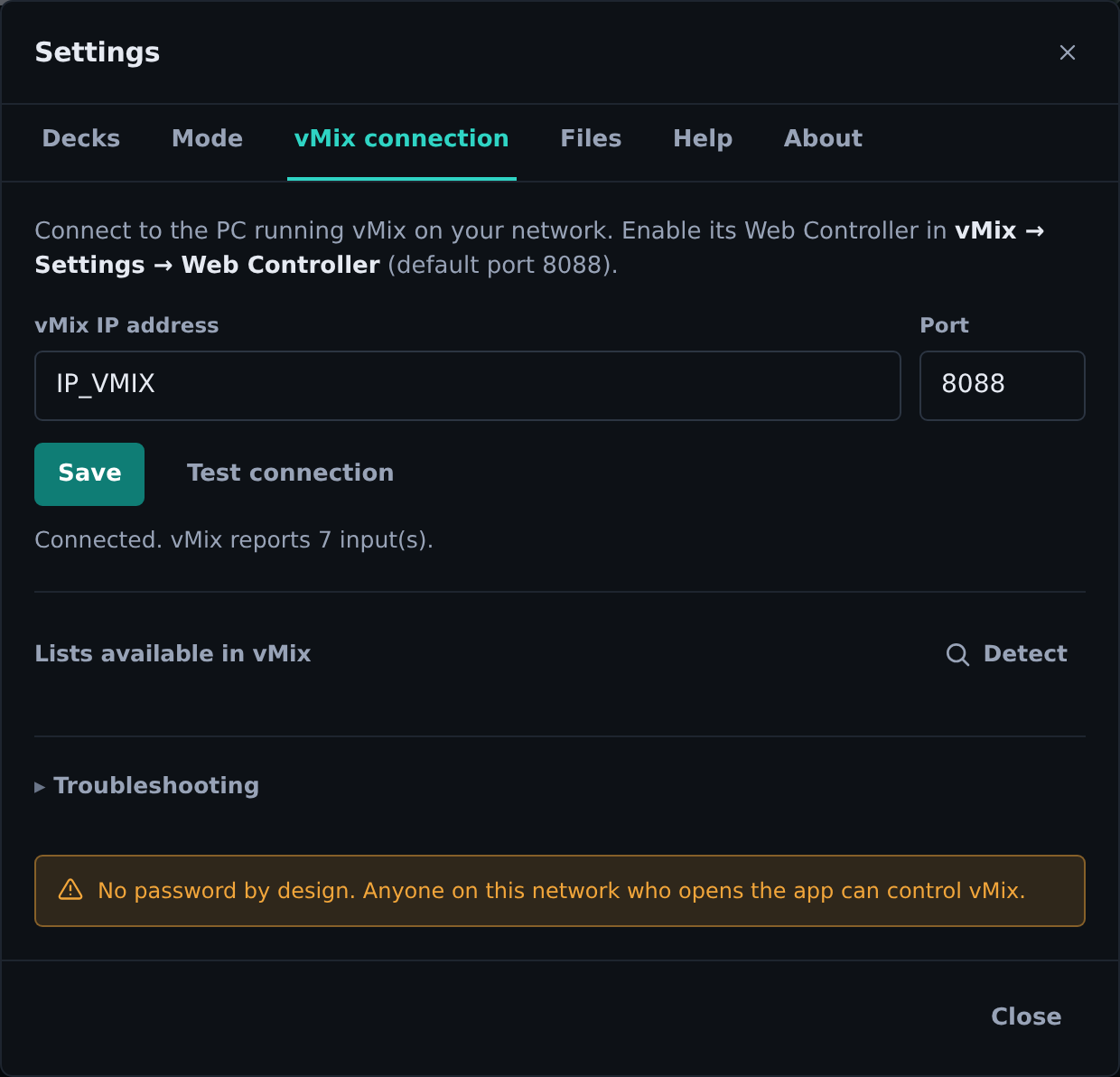
vMix connection tab after a successful Test connection. The IP goes where this reads IP_VMIX.Watch this one and say it out loud when you train someone: there is no password, by design. Anyone on that network who opens the app and types the IP can drive vMix. The app trusts that the production network is trusted.
4.3 Files tab
In the desktop app you do not need to touch it. It exists for the browser version, where the browser never reveals where a file sits on disk and you have to tell it. The desktop app reads each file's real path directly, so it ignores this setting.
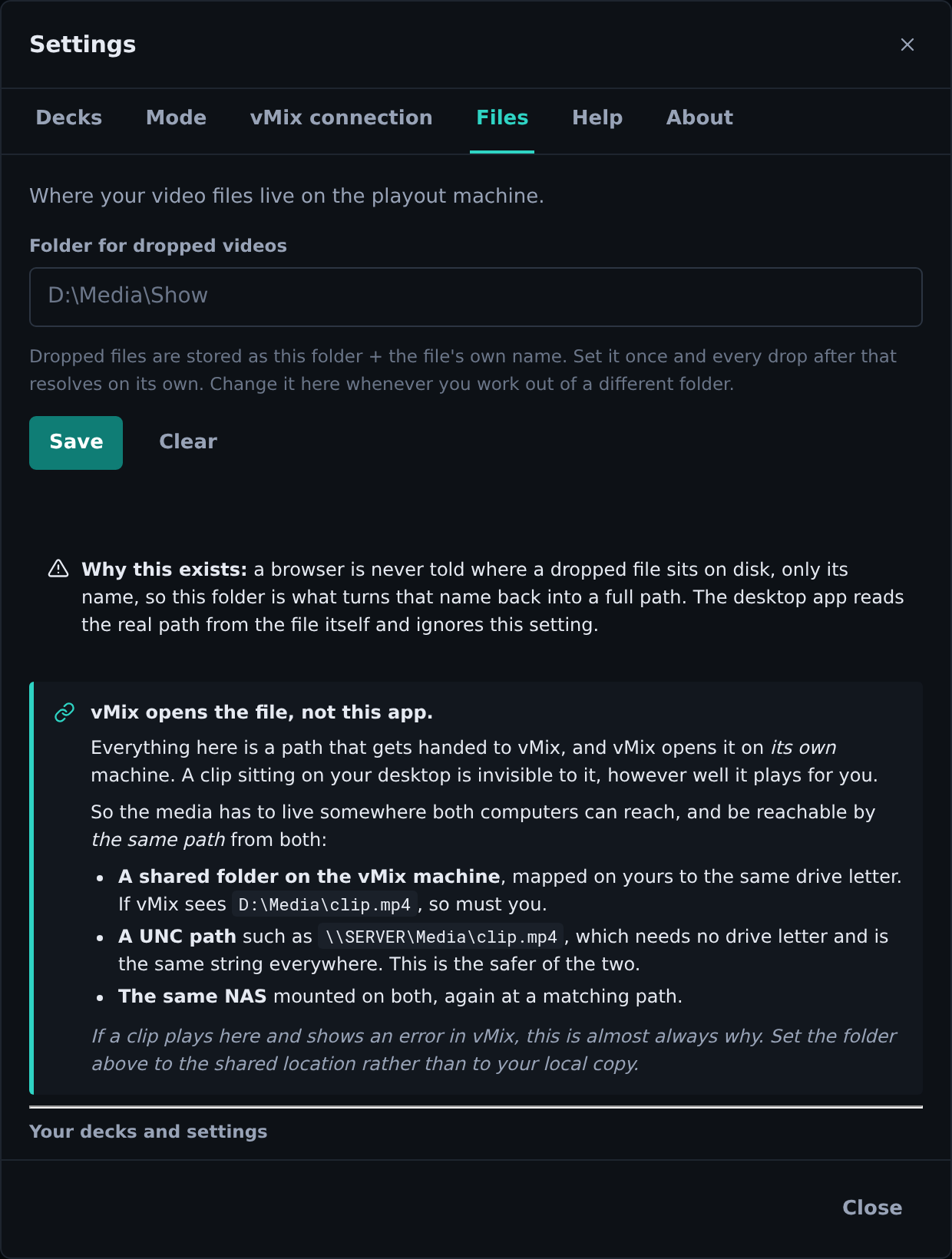
Files tab. The note at the bottom is the one to read, even though the rest of the screen does nothing in the desktop app.What is worth reading on that tab is the note about paths, because it explains the single most common failure. YCtlX does not send files. It sends vMix each clip's path, as text, and vMix opens it on its own. Which means the path has to be valid from the machine running vMix, not from yours.
If YCtlX is on the same PC as vMix, there is nothing to think about. If it is on another one, there is one rule:
Keep every clip on a network location, reachable at the same drive letter or the same UNC path from both machines.
A clip at D:\Media\show.mp4 on your PC does not exist for a vMix that has no such D:. Whereas \\SERVER\Media\show.mp4, or a network drive mapped as M: on both, works from either one.
When this fails, vMix says nothing: it accepts the command and leaves the input black. So test it with one clip before the first show, not during it.
4.4 Light and dark theme
The sun and moon button in the top bar switches between them. By default it follows whatever Windows is set to; the moment you pick one by hand, that choice sticks and stops following.
Dark theme for a dark room. Light is easier for building rundowns in a lit office.
4.5 Help tab: this manual, for your version
The ? button in the top bar, ⚙ → Help, and the F1 key all open the same tab. From there:
- Operator manual opens this manual in your browser, at
yctlx.com/help/<version>/en/. The page carries a link across to the Spanish edition. - All versions opens
yctlx.com/help, the list of every published version. - Support: support@yctlx.com. Write from the machine that has the problem if you can, and say which version it is and what the status bar said.
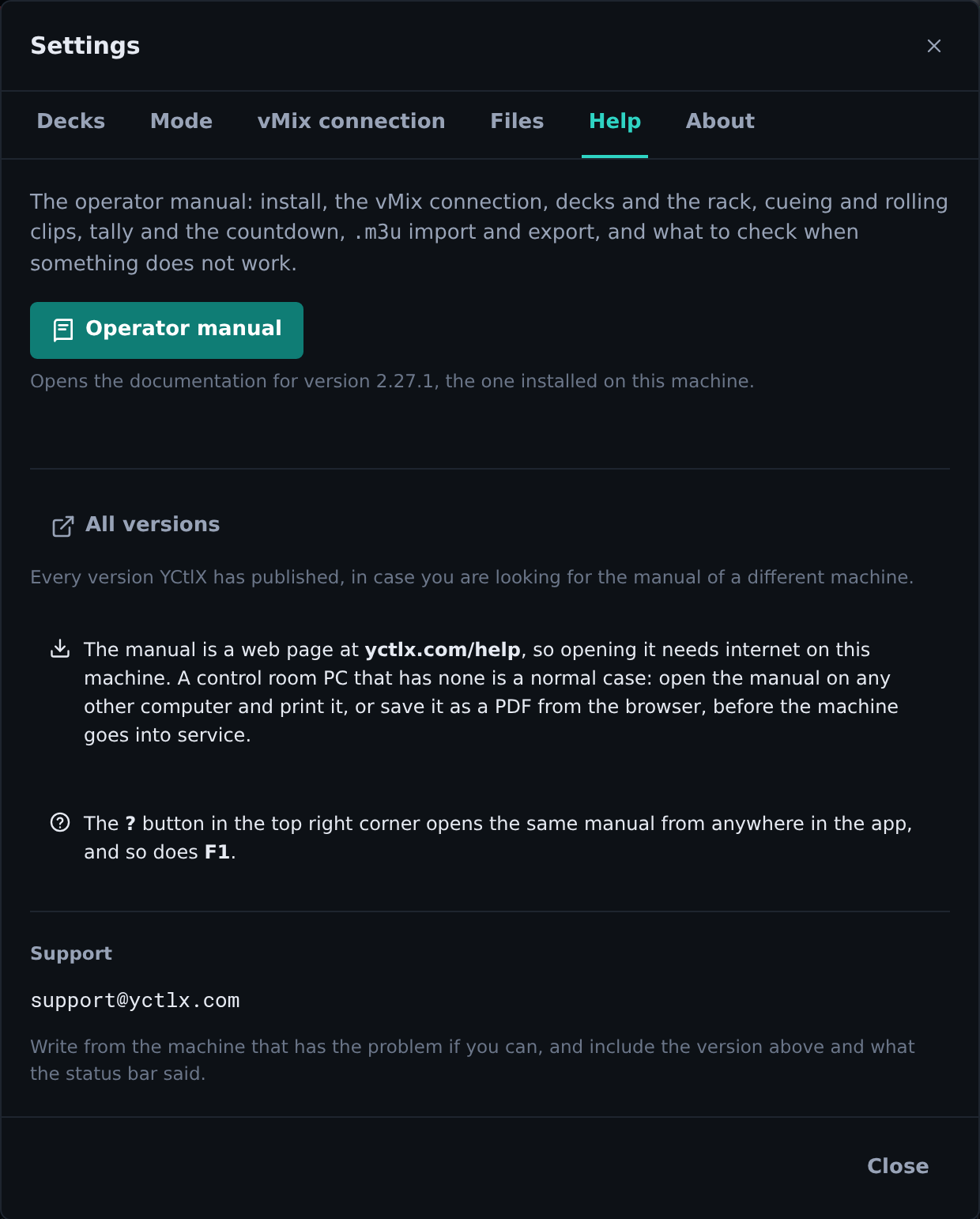
Help tab. The line under the buttons is the version they will open the manual for.The link is not generic: it goes to the manual of the version installed on this PC. Each version's manual is published on its own address and is frozen once published, so a machine that stayed on an earlier build reads the manual describing the screen it actually has, not one full of buttons it does not have. The tab says which version that is, and it is the same number shown at the bottom left of the window.
On a machine with no internet. The manual is a web page, so the ? button is the one thing in YCtlX that needs a connection. Open the manual on any other computer and print it, or save it as a PDF from the browser, before the PC goes into service. Two minutes, once.
5. Know the screen
5.1 The full layout
+--------------------------------------------------------------------------+
|  > YCtlX  vMix VTR      * vMix IP_VMIX · CONNECTED         MASTER  ☼ ? ⚙ |  <- top bar
+--------------------------------------------------------------------------+
|                                                                          |
|  +---------------------+  +---------------------+  +-------------------+ |
|  |                     |  |                     |  |                   | |
|  |       DECK 1        |  |       DECK 2        |  |      DECK 3       | |  <- the rack
|  |                     |  |                     |  |                   | |
|  +---------------------+  +---------------------+  +-------------------+ |
|                                                                          |
+--------------------------------------------------------------------------+
|  [10:32:07] VTR-A: CUE "5A1-Opening"      SYSTEM ACTIVE  NETWORK: OK ... |  <- status bar
+--------------------------------------------------------------------------+
Top bar, left to right:
- The name
YCtlXwithvMix VTRunder it. The version is at the bottom left, before the>_, so it can be read without opening anything. - The vMix connection state:
Not connectedbefore you configure it, thenvMix IP_VMIX · CONNECTEDwith the IP you configured and a green dot, or· OFFLINEwith a red dot if vMix stopped answering. - The mode indicator,
MASTERorCLIENT. - The theme button, the manual button ?, and the settings button ⚙.
The rack shows decks side by side. You can have up to 6 decks visible at once. Which ones show depends on which decks are pinned (see 6.9). On a narrow window the decks stack vertically instead.
Status bar, at the bottom:
- On the left, the log of the last command, timestamped:
[10:32:07] VTR-A: CUE "5A1-Opening". This is the first thing to read when something did not respond the way you expected. - On the right,
SYSTEM ACTIVEorSTANDBY,NETWORK: OKorDOWN, andLATENCY:with the real milliseconds vMix takes to answer. Latency running away is a network problem, not an app problem.
5.2 Inside one deck
+------------------------------------------------------+
| VTR-A                                ⋯   ⚠  [PROGRAM]|  <- name, menu, pending, bus
+------------------------------------------------------+
|                                                      |
|                     00:47                            |  <- countdown
|                                                      |
|   [ ▶ ]  5A1-Opening                                 |  <- loaded clip
|          00:01:30                                    |
|                                                      |
|  00:00:43 |=========o--------------| 00:01:30        |  <- scrub
|              [⟲] [⏭] [C]                             |     Loop / Auto Next / Auto Cue
|                                                      |
|  [⇅]      [⏮] [◼] [▶] [⏸] [⏭]                   [⑂] |  <- Sort, transport, Split
+------------------------------------------------------+
| ▤ 1  5A1-Opening       01:30   D:\Media\...   ON AIR |
| ▤ 2  5A2-Story         02:15   D:\Media\...          |  <- playlist
| ▤ 3  5A11-Closing      00:45   D:\Media\...          |
+------------------------------------------------------+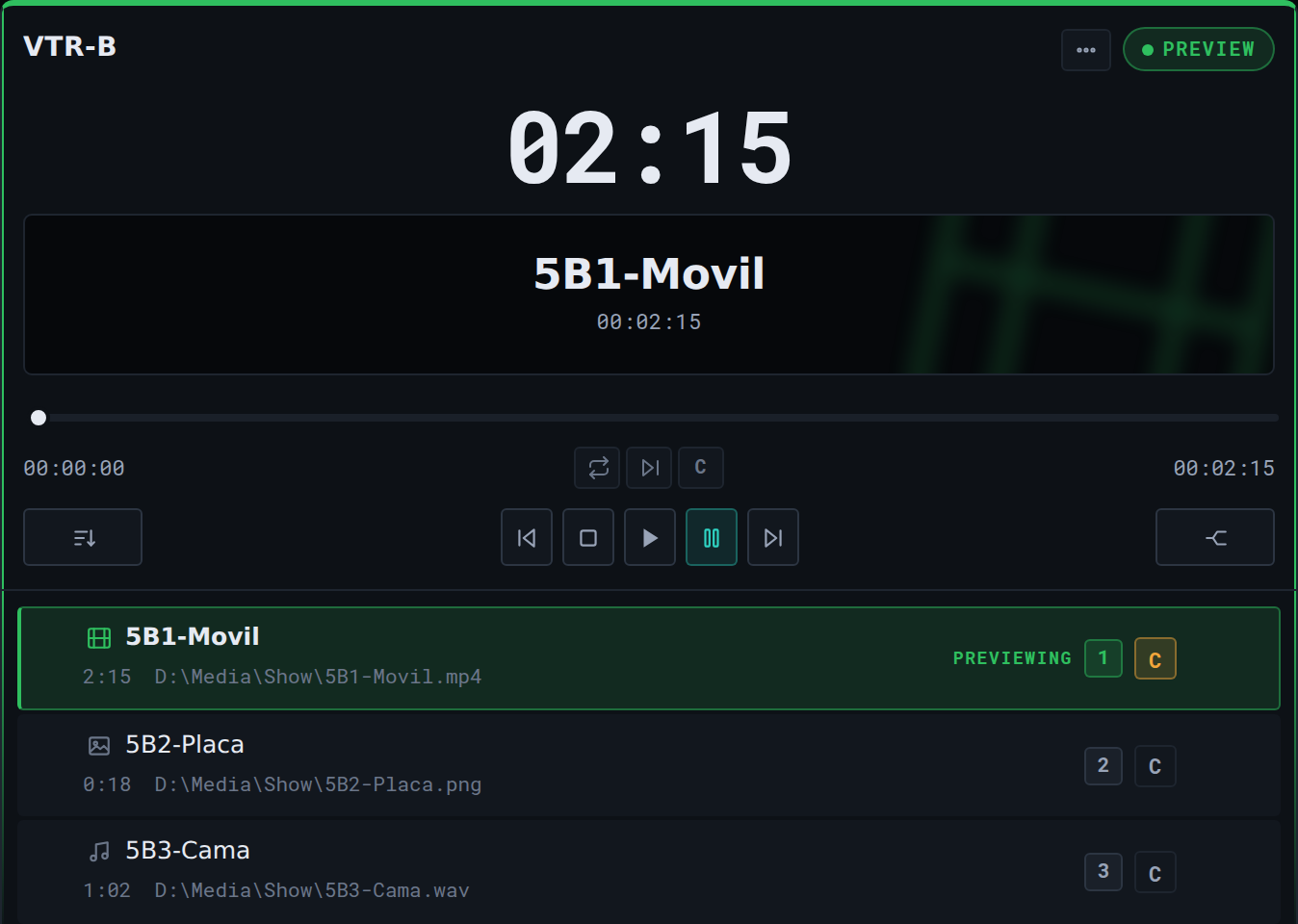
PREVIEW badge, the countdown, the clip screen, the scrub with Loop, Auto Next and Auto Cue, and the transport row with Sort on the left and Split on the right.Top to bottom:
- The deck name. A label, not a field: renaming is in
Settings → Decks(see 5.2), and on a deck linked to vMix it renames the input over there as well. - The
SYNCbutton, right next to the name and only on a deck that has no List of its own in vMix, or whose List is no longer there. It is the way to give that deck its List over there. See 7.1. - The
⋯menu with the rest of the deck's actions. See 5.3. - The pending-changes chip (a warning triangle), which only appears when there are saved changes that have not reached vMix yet. See chapter 8.
- The bus badge, top right:
PROGRAMin red,PREVIEWin green,READYwhen linked and on no bus, andLOCALwhen the deck is not linked to vMix. The deck's whole top border takes the same colour. - The countdown, the big number. It is the time left on the current clip, not elapsed time.
- The screen, with the loaded clip's name and its total duration centred, one above the other. Behind them, oversized and defocused, the media-type icon: a film for video, a camera for a still and a note for audio; it is decided by the file extension, and anything unrecognised shows as video. That backdrop takes the colour of the bus, red on
PROGRAMand green onPREVIEW, so the screen says what is on air from the corner of your eye. With no clip loaded there is no backdrop: the screen stays empty and readsNo clip loaded. - The scrub, the position bar. Drag it to move the playhead. Either side of it, current position and total duration.
- The three toggles in the middle of the scrub:
Loop,Auto NextandAuto Cue. See 7.5. - The transport row: the
Sortbutton on the left, the five transport buttons in the centre, and the split button (the forking icon) along the right edge. See 7.4 and 6.8. The two on the ends are local: they reorder or deal clips on this side, so they stay available in CLIENT mode and with the deck on air. - The playlist, one row per clip.
5.3 The deck's ⋯ menu
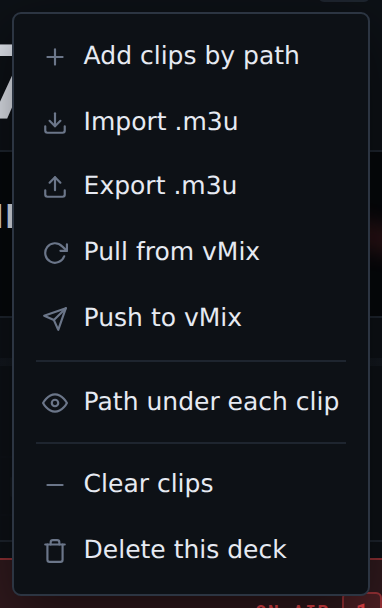
Pull from vMix and Push to vMix only appear if the deck is linked.Add clips by path | Opens the field for typing or pasting paths. |
Import .m3u | Brings a playlist in from an .m3u file. |
Export .m3u | Saves the playlist as an .m3u file. |
Pull from vMix | Replaces the deck's contents with what is in vMix now. |
Push to vMix | Sends the deck's order to vMix. |
Path under each clip | Shows or hides the path under each clip. Remembered per deck. |
Clear deck | Empties the whole deck. |
Pull from vMix and Push to vMix only appear if the deck is linked and you are in MASTER.
The menu closes by itself: on picking an option, on Esc, or on a click anywhere else on screen. Only one can be open at a time, so opening another deck's menu closes the first. The one option that does not close it is Path under each clip, which is a switch and usually gets flicked on and off a couple of times in a row.
5.4 One playlist row

Every row carries two lines that start at the same point: on top the media-type icon with the clip name beside it, and underneath the duration and the file path. Along the right edge, the position number and the state word: ON AIR, PREVIEWING or READY.
The icon is the same one that backs the deck's screen, and it comes from the file extension: a film for video, a camera for a still and a musical note for audio. It is there because a vMix List does not only carry video: graphics and music beds go in the same playlist, and cueing a still is not the same as cueing a two-minute package.
Hovering reveals the row actions:
C: picks that clip. It is the only button always visible without hovering, because it is the one you use most. The amberCmarks the clip that goes next, not the one that is loaded: while a clip rolls, the row's red tally already says which that is, and what you need to know is what follows it. With the deck parked the two are the same clip.
What the button does depends on the deck:
- Deck parked: loads that clip in vMix there and then, as before.
- Deck rolling, or on air: it does not touch vMix. It notes that clip as the one to follow, marks it amber, and loads it once the take ends or the deck leaves air. That is why it is safe to press live: not one call goes out to vMix during the take.
With Auto Cue or Auto Next on and nobody choosing by hand, the amber marks the clip they are heading for. Choosing one by hand always wins.
- The move button (four arrows): sends that clip to another deck.
- The bin: deletes the clip. It does not ask for confirmation, keep that in mind.
The clip name cannot be edited. It identifies a real file on disk, so changing it would only make the app and reality disagree. The path can be edited, except on clips that came from vMix.
To the left of every row is a drag handle, used to reorder the playlist or move a clip to another deck.
5.5 The colours, all in one place
This is the table worth memorising before sitting down to operate.
| Colour | Where | What it means |
|---|---|---|
| Red | Deck badge, top border, row | On Program. On air. |
| Green | Deck badge, top border, row | On Preview. Set up, not on air. |
| Amber | Playlist row | Cued locally, not on any bus yet. |
| Amber | Countdown | 15 seconds or less left. |
| Red | Countdown | Under 10 seconds left. |
| Amber | Warning chip in the title | There are changes that have not reached vMix. |
| Teal | Buttons, borders, focus | Just the interface colour, it means nothing operationally. |
Teal was picked for exactly that reason: red, green and amber are reserved for on-air state, and nothing else is allowed to compete with that meaning. Do not confuse a teal button with Preview green: the tally green is stronger and always appears on the badge or the deck border, never on a loose button.
6. Building a playlist
6.1 Create a deck
Settings → Decks → New deck. The new deck appears in the rack.
A fresh install carries no decks at all. It opens onto an empty screen with the logo behind it, offering the only two things that can be done from there: Add a deck, or Import from vMix if you have already saved an address. If you have not, that second button says Set up vMix and takes you to the connection tab. The app used to invent a deck called List 1 that most people renamed or deleted; the first one is now your call.
Six decks is the cap, counting the ones you make by hand and the ones you bring in from vMix alike. Next to the button you can see how much room is left (2 of 6 still free), and at six the button turns off.
Rename: in the Settings → Decks list, the pencil button on the row opens the name for editing right there. Enter saves it, Escape leaves it as it was. It is the only place a deck is renamed: the title at the top of a deck is a label.
If the deck is linked to vMix, the name changes in vMix too, on the input it belongs to, and the one that sticks is the name vMix reports back. Both sides always read the same, which is what matters when somebody calls a VTR over intercom. If vMix does not answer, the name still stands on this side and a notice tells you it never got there.
Delete: the same menu has Delete, with a confirmation. It removes the deck from YCtlX and nothing else: the List in vMix is left untouched.
6.2 Drag files in
Drag one or more files from Windows Explorer and drop them anywhere on the deck. The whole deck is a drop zone, you do not have to aim.
What it takes. A vMix List holds more than video, so the filter does too:
| Formats | |
|---|---|
| Video | mp4 m4v mov mxf mkv avi wmv mpg mpeg m2v ts m2ts mts webm flv f4v 3gp asf dv |
| Photo | jpg jpeg png bmp gif tif tiff webp tga |
| Audio | mp3 wav aac m4a wma flac ogg aif aiff |
These are what vMix opens in a List. Anything else is ignored silently, so that dropping a folder with .txt and .xml in it does not fill the deck with junk.
In the desktop app full paths resolve on their own. The message reads N video(s) added with their full path. If you ever see an amber Needs folder badge, that clip arrived some other way, not by dragging.
6.3 Drag a whole folder
You can drop an entire folder. YCtlX walks it, subfolders included, and adds every piece of media it finds, preserving the structure in the paths. Anything that is not recognised media is ignored.
It handles large folders fine, past a hundred clips.
6.4 Type or paste paths
⋯ → Add clips by path opens a text field. You can:
- Type a full path and press Enter.
- Paste several lines at once: one clip per line. This is the fastest way to load a rundown someone sent you over chat or mail.
6.5 Import an .m3u
⋯ → Import .m3u, or just drop the .m3u file onto the deck. It accepts both the extended and the plain format, even mixed in the same file.
6.6 Pull a List from vMix
See 7.1. This is the usual route when the block is already built on the vMix side.
6.7 Sort by rundown code
The Sort button on the transport row orders the deck by reading the code in the filename, in the form 5A1-NAME:
| 5 | The show |
| A | The segment |
| 1 | The story |
It sorts by show, then segment, then story, and it treats the numbers as numbers. That is the whole point: alphabetical order puts 5A11 before 5A2, and this does not.
before:  5A11-Closing, 530A1-Story, 11B2-Story, 5A2-Story, 6A1-Story, 5A1-Opening, bumper.mp4
after:   5A1-Opening, 5A2-Story, 5A11-Closing, 6A1-Story, 11B2-Story, 530A1-Story, bumper.mp4
The pattern is matched strictly: digits, one capital letter, digits, then a hyphen. A name that does not match exactly (5a1- lowercase, 5 A1 - with spaces, 5A1story with no hyphen) counts as having no code and goes to the end, sorted by name. The message tells you how many ended up there, so if that number surprises you, go and check how the files are named.
Sort orders only the deck whose button you pressed, and only once. After that you can drag freely and nothing rearranges itself.
6.8 Deal one deck into two, A/B roll
The split button, next to the deck name, deals clips every other one into another deck: 1st, 3rd and 5th stay; 2nd, 4th and 6th go across.
It is for the classic control-room pattern: while VTR-A rolls a clip, the next one is already loaded and cued on VTR-B, so the change is instant.
Pressing it opens a menu to choose the destination deck, or to create the partner on the spot. If the deck is called VTR-A, it offers to create VTR-B. Whatever the destination already had is kept, and the dealt clips are appended.
It needs at least 2 clips to make sense, and tells you if there are not.
6.9 Choose which decks are visible
Settings → Decks holds the list of all your decks. Each has a pin button and a delete button.
- With nothing pinned, every deck shows (up to 6, which is what fits in the rack).
- With decks pinned, those show, up to the 6 that fit in the rack.
- The deck you are working on always shows, pinned or not.
Clicking a deck's name brings it up. Neither that, nor pinning, nor deleting closes the window, so you can arrange several in one go.
Six decks, and that is the cap. The app holds six at most, counting the ones you make by hand and the ones you bring in from vMix alike. Next to the add button you can see how much room is left (2 of 6 still free), and at six the button turns off. If you want to import Lists from vMix and they do not fit, the app asks which decks to replace rather than sending you off to delete some and come back.Deleting several decks at once
Every row in the list also has a checkbox on its left. Ticking the first one brings up a bar above the list saying how many decks and how many clips you have selected, with two buttons: Clear selection and Delete selected.
The confirmation names the decks about to go, not just how many. Read it: this cannot be undone. If you ticked every deck it also warns that an empty one will be left in their place, because the rack is never left with none.
Ticking a checkbox does not switch decks or close the window, so you can mark several without interruption. The selection is dropped when you close settings: you will never reopen it and find decks already armed for deletion.
Changing the order of the decks on the rack
Deck order is locked until you unlock it. On a rack of six decks, a click that slips during a show is a deck that moved, so dragging one is not something that happens by accident.
To reorder them:
⚙ → Decksand turn on theUnlock deck orderswitch.- Drag the decks: by name in that same list, or by their header on the rack. Both do the same thing and can be mixed.
- Lock it again when you are done.
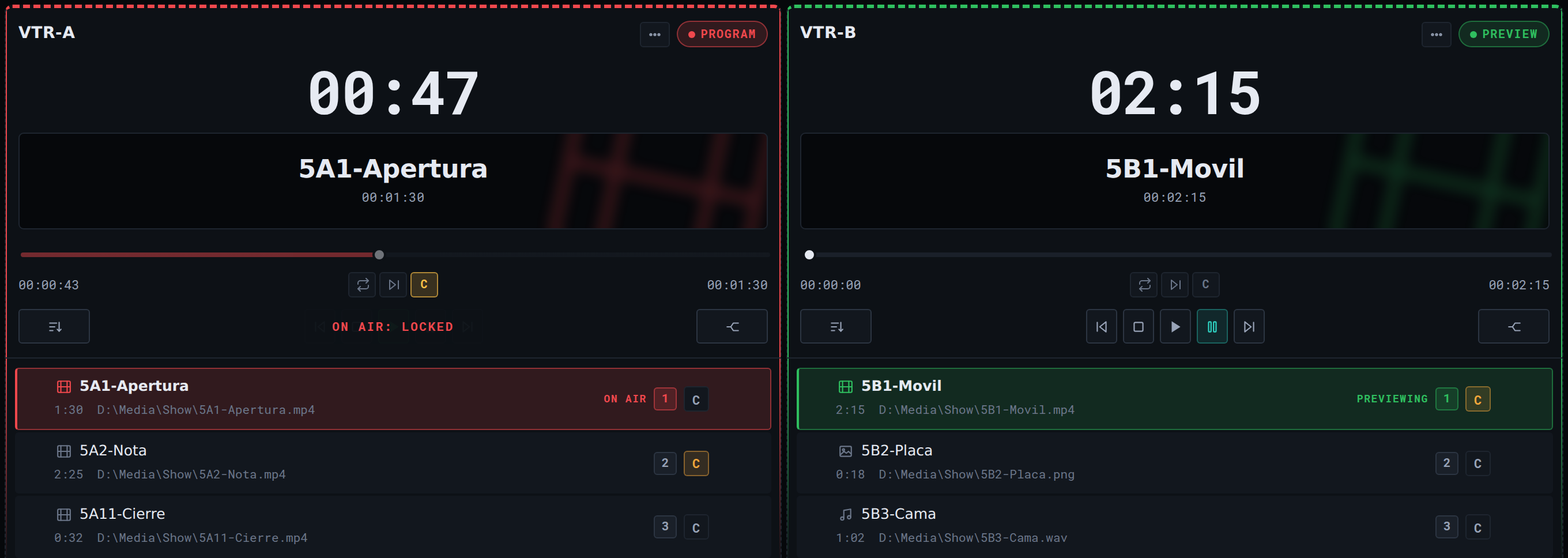
While it is unlocked, every deck is drawn with a dashed border and the status bar shows DECK ORDER UNLOCKED. That notice is also the button that locks it again, so you do not have to go back into settings.

Two things worth remembering:
- It locks itself when the app closes. You will never open YCtlX with the rack unlocked.
- With decks pinned, dragging on the rack reorders only the ones you can see. The ones off screen stay where they were.
Reordering decks touches nothing in vMix: it changes the order you see them in, not the inputs on the other machine.
6.10 Reorder, move and delete
- Reorder: drag the row by the handle on its left. You can also drop into the blank space below the last clip.
- Move to another deck: drag the row onto the other deck, or use the row's move button and pick the destination.
- Delete a clip: the bin on the row. No confirmation.
- Empty the whole deck:
⋯ → Clear deck. This one does ask, and if the deck is linked it warns you that the List in vMix is emptied too.
6.11 Export an .m3u
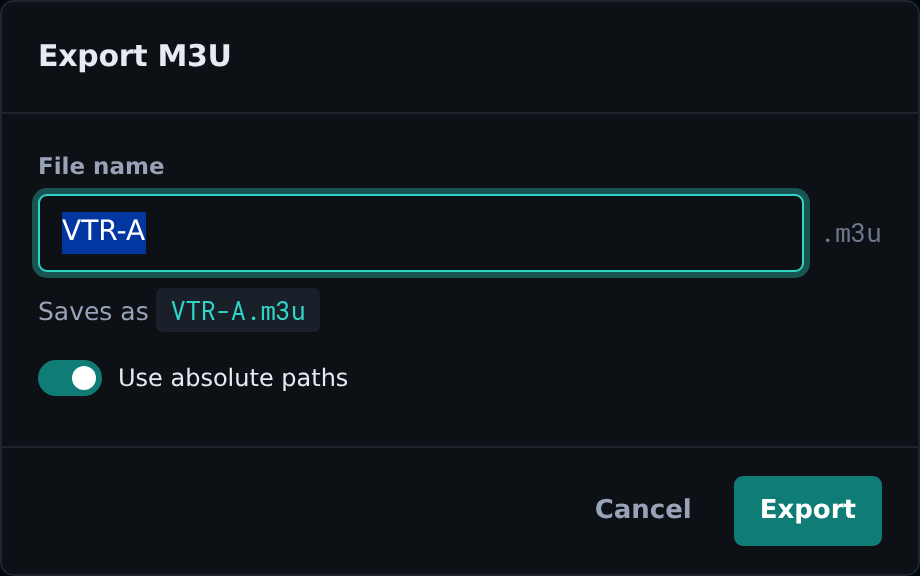
Use absolute paths switch.⋯ → Export .m3u opens a dialog with:
- The file name, prefilled with the deck's name. Characters Windows will not accept are replaced automatically and the
.m3uextension is added for you. Below, you see exactly how it will come out. - The
Use absolute pathsswitch, on by default. On, the file carries each clip's full path, which is what vMix needs. Off, it carries names only.
If any clip has an unresolved path while the switch is on, the export stops and offers to set the folder first. That is deliberate: better to stop than to write an .m3u full of broken paths that will fail at the worst moment.
6.12 Move the setup to another PC
Settings → Files → Export configuration writes a single .json file with everything needed to make another machine match this one:
- The decks, with their clips and paths.
- Each deck's link to its vMix List.
- The vMix address and port.
- MASTER or CLIENT mode, the theme, the base folder and the toggles.
Import configuration on the other PC reads it and replaces whatever was there, asking first. It is how you set up a second operating position, or bring a PC back after a reinstall, without typing anything in again.
The vMix address travels with it. It lives on the host side rather than in the saved state, so it has to be picked up on purpose: without it you arrive at the new machine with every deck and nothing that answers.
7. Linking to vMix and operating
7.1 Pull vMix's Lists in
⚙ → vMix connection, with the connection already tested and saved.- Press
Detect. Up comes every List-type input vMix has at that moment, with each one's clip count. - Tick the ones you want with the checkboxes, or use
Select all. - Press
Import selected. Each List comes in as a new linked deck with its current clips.
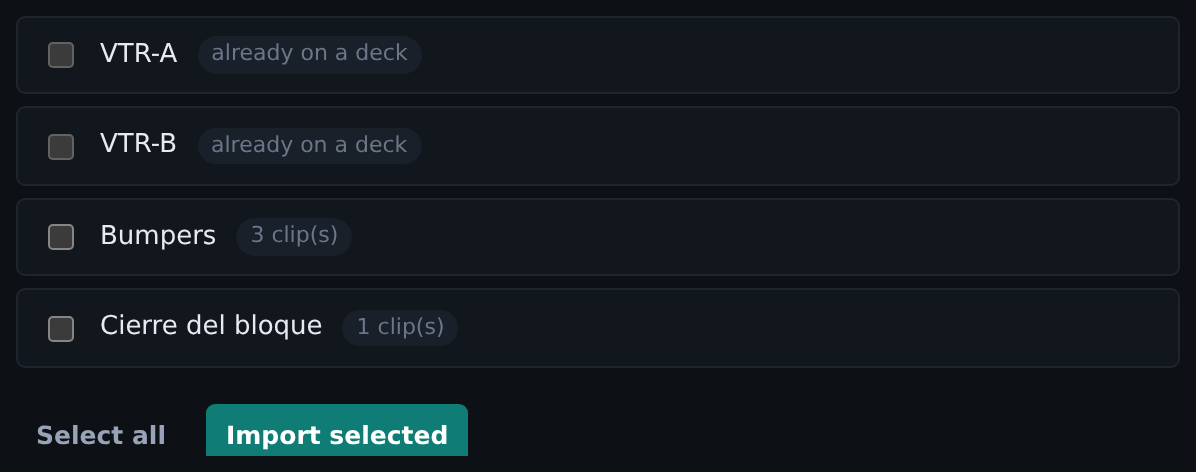
Detect found, with their clip counts. The first two are ticked and come in together with Import selected.If a List is already on a deck it is skipped rather than duplicated, and you are told how many were skipped. Two decks pointing at the same List input would fight each other on every push, which is why it is not allowed.
If you get No List-type inputs were found in vMix., the connection is fine but vMix has no List-type input. You can create one from here, as follows.
SYNC: giving one deck its List in vMix
The other direction: a deck you built here that does not exist in vMix yet. Instead of recreating it by hand on the other side, that deck carries a SYNC button next to its name.
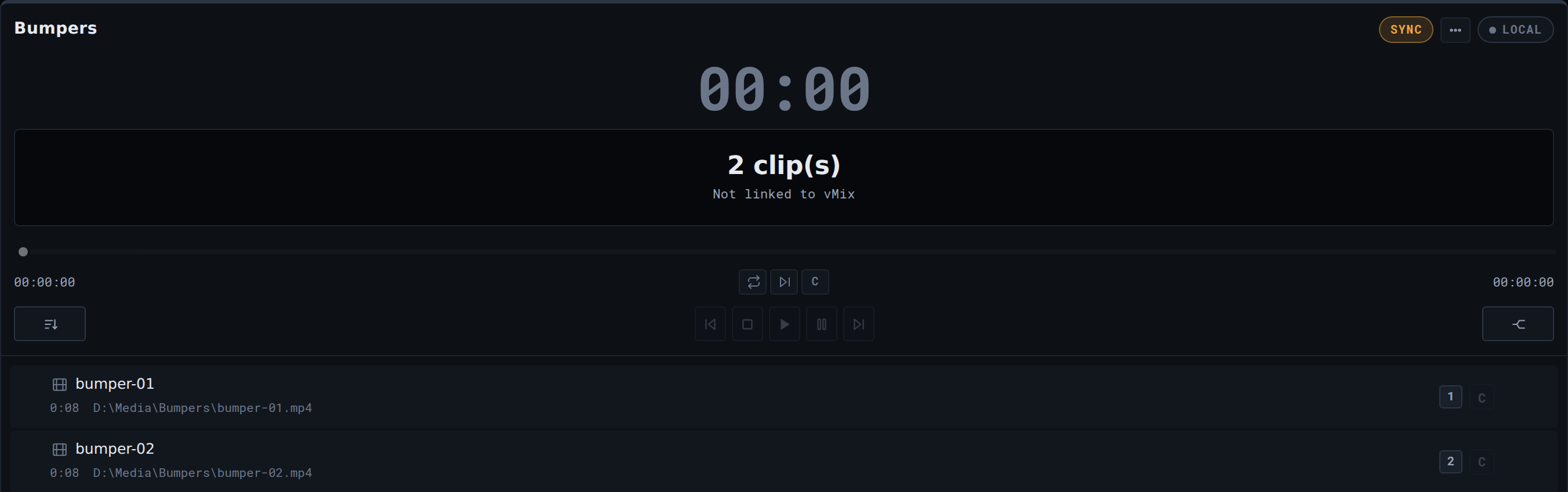
LOCAL, has no transport, and carries SYNC next to its name.One click does all three things:
- Creates a List-type input in vMix under the deck's name.
- Links the deck to that input, exactly as if you had imported it.
- Sends over the clips the deck already had.
From then on it is a linked deck like any other: bus badge, transport, countdown and tally.
The button appears only on a deck with no live List of its own, and only in MASTER mode: in CLIENT nothing on this screen may touch vMix. On a rack where every deck is linked you will not see a single one.
If something fails, the message tells the two moments apart. If the List could not be created, the deck is left as it was and you can try again. If the List was created but the clips did not arrive, the deck is already linked and ⋯ → Push to vMix is enough: nothing has to be created again.
When vMix already has that name
vMix takes a second List with a name it already holds without a word of protest, and then two Lists answer to the same name and the only difference between them is a GUID you cannot see. So SYNC reads vMix's state before it creates anything, and when the name is taken it asks instead of guessing:
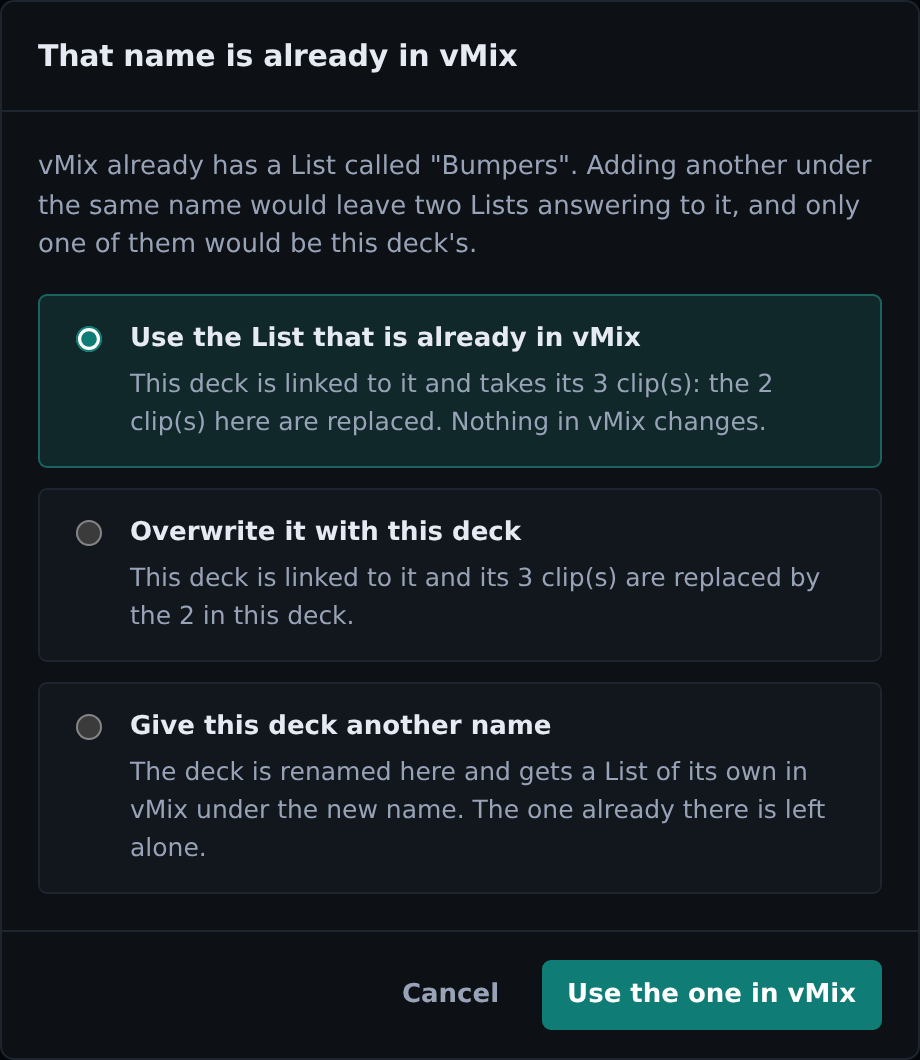
- Use the List that is already in vMix. The deck is linked to it and takes its clips; what the deck held is replaced. Nothing in vMix changes. This is the answer when the List over there is the good copy.
- Overwrite it with this deck. The deck is linked to it and its clips replace what vMix holds. From an empty deck this empties the List, and the option says so in as many words before it can be pressed.
- Give this deck another name. The deck is renamed on this side and gets a List of its own under the new name; the one already in vMix is left alone. A free name is suggested (
BumpersbecomesBumpers 2) and whatever you type over it is checked against vMix again on the way out.
If vMix holds the same name twice, which it allows, a picker appears first so you say which of the two this is about.
SYNC in Settings: the whole rack against vMix
The button on a deck answers for that deck. ⚙ → Decks carries a SYNC of its own, at the right end of the row above the deck list, and that one answers for the whole rack: it reads vMix and shows everything the two sides do not agree about, in both directions at once.
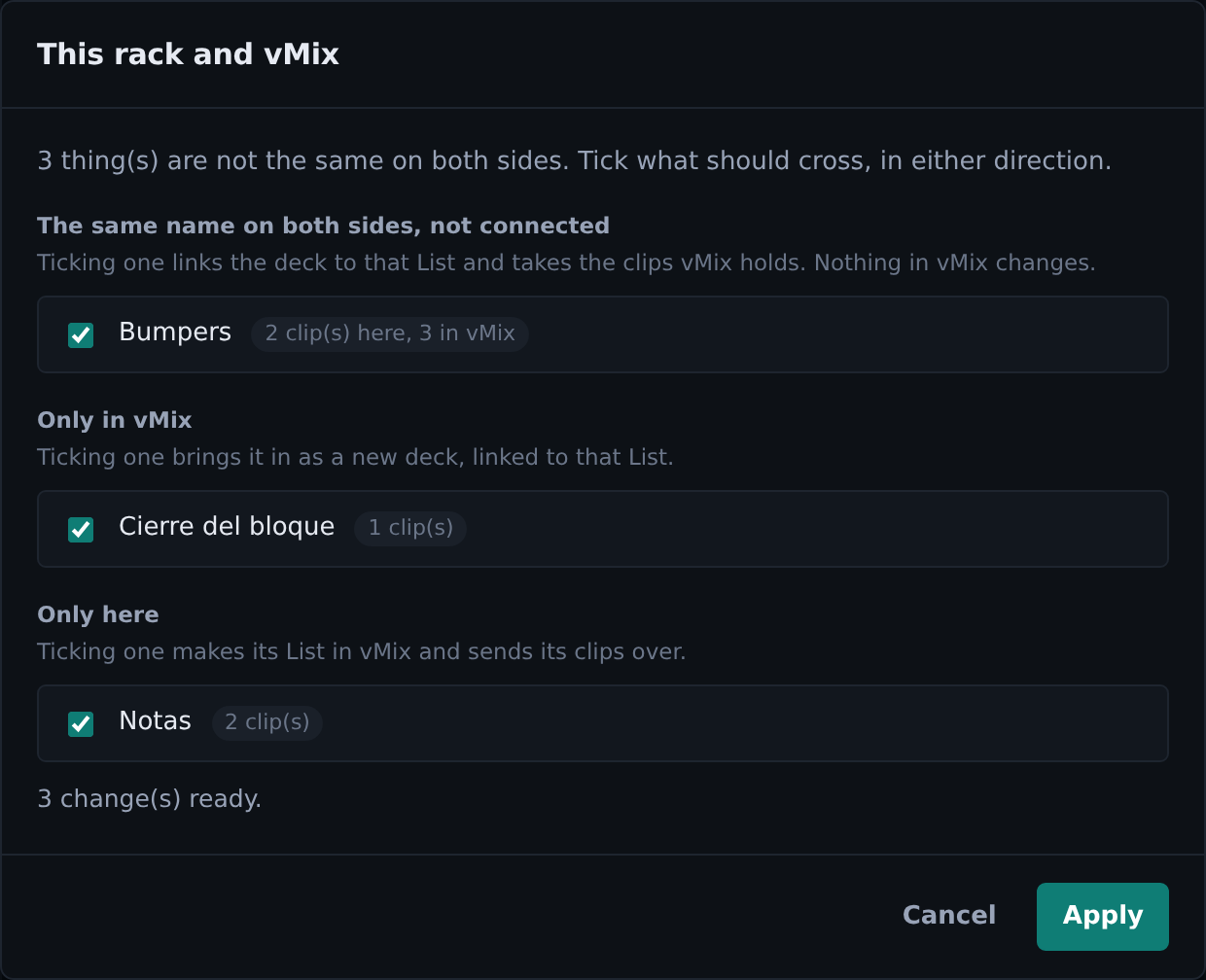
Three groups, and a tick box on every row:
- The same name on both sides, not connected. Almost always one thing that came apart: the app was reinstalled, or vMix started from a preset. Ticking it links the deck to that List and takes the clips vMix holds. Nothing in vMix changes.
- Only in vMix. Ticking it brings the List in as a new deck, linked, exactly like
Import selected. - Only here. Ticking it makes that deck's List in vMix and sends its clips over.
Everything that can cross comes ticked, because the usual answer is all of it; untick what should stay as it is. The rack holds six decks, so when more Lists are coming in than there are free slots, the ones that do not fit come unticked and the dialog says why rather than letting you press a button that cannot work.
A deck whose name is already a List that another deck drives is shown but cannot be ticked, with the reason on its row. That one is a question, not a chore, so it belongs to that deck's own SYNC.
What is already linked is not in the dialog at all. That is the part that is in sync, and listing it would bury the rows that need a decision.
When a link goes stale
The link between a deck and its List is vMix's own GUID, and vMix hands out new ones when it is restarted from a preset or reinstalled, or when somebody deletes the input over there. A deck can therefore be holding a link to a List that no longer exists, which is not the same thing as a deck that was never linked and does not look like it either.
Both SYNCs treat that deck as what it actually is, a deck with no List. The button comes back on its header, and in Settings it appears with its List is gone from vMix beside its name. Pressing it makes the List again, or, if vMix has a List with that name, offers to link it back to that one.
7.2 Pull and Push
Pull from vMixreplaces the deck's contents with what is in vMix now. Use it when someone edited the List directly in vMix and you want to start from that.Push to vMixsends the deck's order to vMix.
In normal operation you almost never need to press Push by hand. Reordering, sorting with Sort and dealing with split all send the change themselves. The button is there for edge cases and for forcing a held push, which is what chapter 8 is about.
7.3 The bus badge
PROGRAM | That List is on air. |
PREVIEW | That List is on the preview bus. |
READY | Linked to vMix, on no bus. |
LOCAL | The deck is not linked to vMix. It is a loose playlist. |
7.4 The transport
The five buttons in the centre of the transport row, left to right:
| Prev | Goes to the previous clip in the List. |
| Cue | Pauses and returns the current clip to 0:00. Ready to roll, not rolling. |
| Play | Rolls. |
| Pause | Pauses where it is. |
| Next | Goes to the next clip in the List. |
Play and Pause light up according to what vMix is actually doing, not according to the last button you pressed.
To cue a specific clip, not the current one, use that row's C button. That is the normal way to arm the next one.
Two buttons are calledCand they do different things. TheCon a row cues that clip, now. TheCon the scrub bar, next to Loop and Auto Next, is theAuto Cuetoggle, which is a preference and cues nothing at that moment.
The scrub is dragged to move the current clip's playhead. Release it and vMix jumps to that position.
There is no mute button. Audio is mixed in vMix.
7.5 The three toggles
Loop | vMix repeats the current clip instead of ending it. |
Auto Next | vMix moves to the next clip on its own when the current one ends. This is a vMix function. |
Auto Cue (the C) | YCtlX's own function: leaves the next clip cued, without rolling it. |
When they are on they take their own colour, one each so you can read which of the three is armed from across the room without remembering which button is which: Loop in blue, Auto Next in teal and Auto Cue in amber, the same amber as the rows' C.

Loop belongs to vMix and is read back from vMix on every poll, so if somebody changes it over there you see it here. Auto Next appears nowhere in what vMix reports, so that one YCtlX remembers itself.
Auto Cue fires at two moments:
- When the deck comes off air, whether the clip ended or was cut halfway. The shot is over, so the next one gets armed. This is the normal operating case.
- When a clip ends on a deck that is not on air, a rehearsal deck for instance.
While the deck is on Program it does nothing: it never loads anything underneath what is going out.
If vMix's Auto Next is on, Auto Cue steps aside and says so in the status bar log: Auto Cue skipped, Auto Next is on. Both do the same job from different places and would collide.
On the last clip in the list there is no next one to cue, so it re-cues that same clip when the deck leaves air, even if it was cut halfway. It goes back to 0:00, ready to run again, instead of leaving the playhead where it was cut. It does not wrap to the first clip: that would be guessing.
7.6 The clock
It is the countdown on the current clip, not elapsed time. The numbers turn amber at 15 seconds or less and red under 10 seconds.
vMix only reports the time of the clip it has selected, so the clock always refers to that one, never to the block total.
The clock keeps its warning colours even with the deck on Program, which is exactly when they matter most.
8. Rules for operating on air
This is the chapter to read twice.
8.1 What locks when a deck is on Program
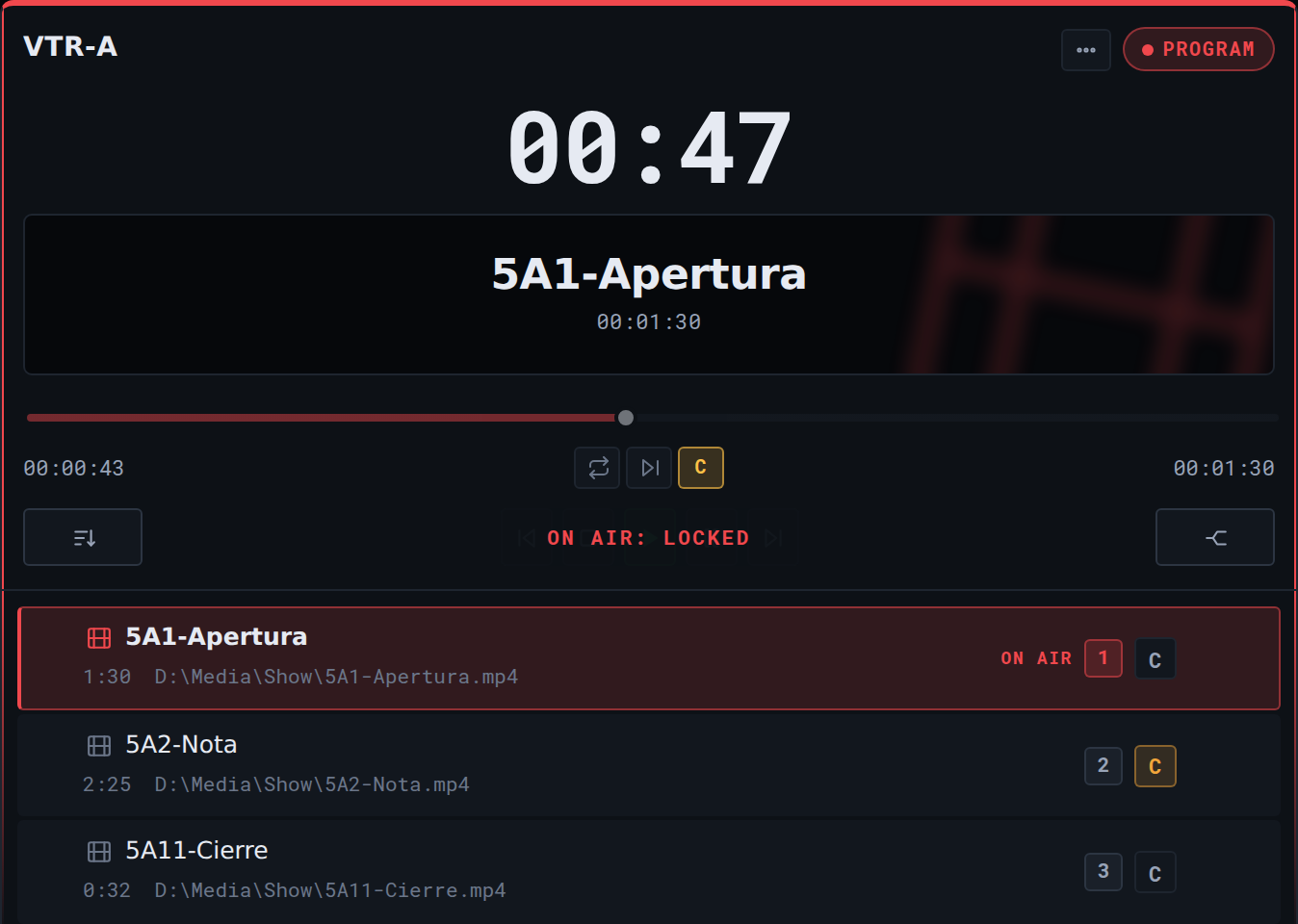
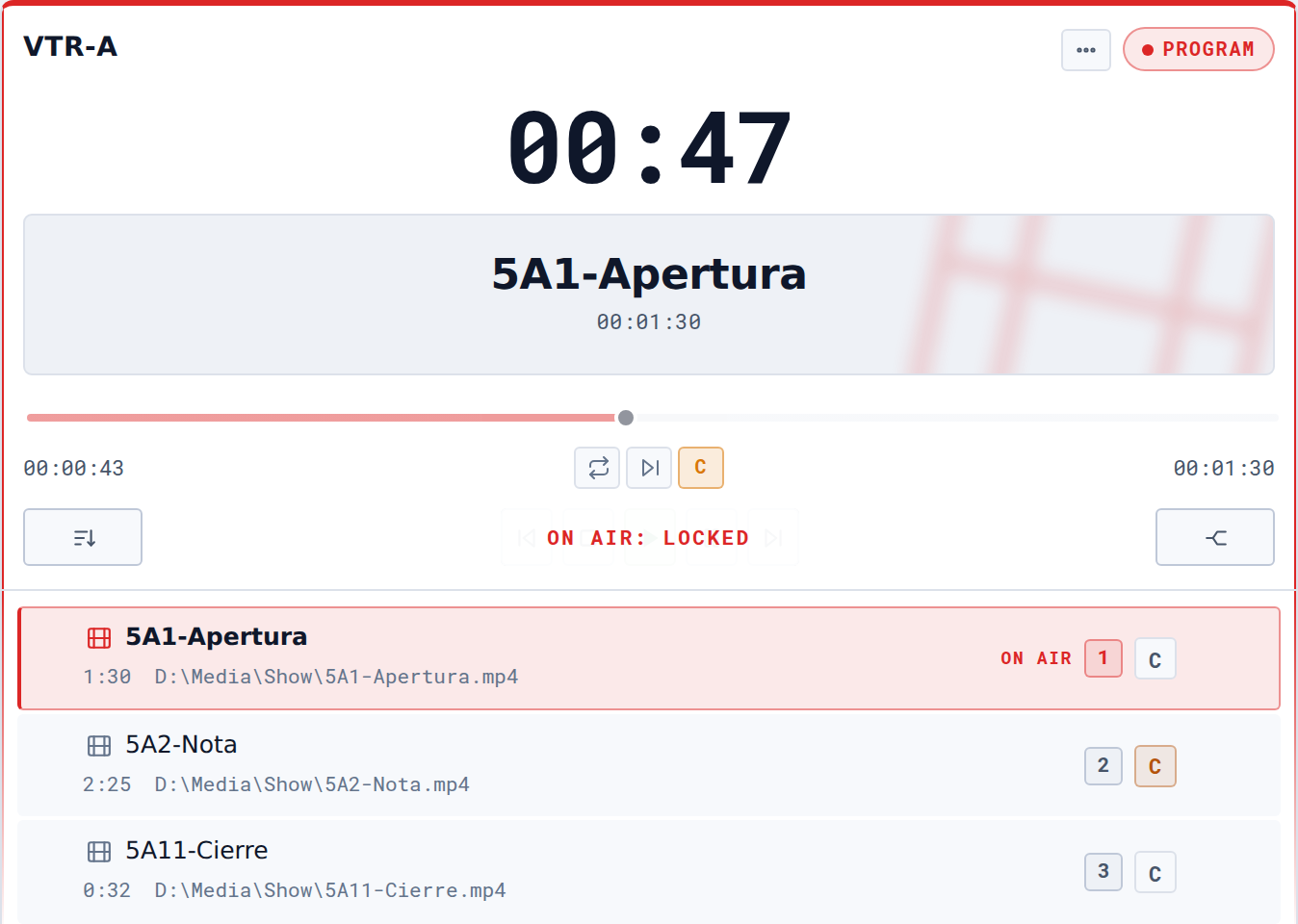
ON AIR: LOCKED banner, the border and badge are red, and the amber C marks the clip that follows.The moment a deck goes to Program, the app disables, by itself:
- All five transport buttons:
Prev,Cue,Play,Pause,Next. - The scrub bar.
A banner reading ON AIR: LOCKED appears over the transport. It unlocks by itself as soon as the deck leaves Program.
Why: if it is on Program, it is on air. Touching any of those controls changes what the audience sees, immediately.
The rows' C buttons keep working, and that is deliberate: while the deck is on air they send nothing to vMix, they only note which clip you want next. See 5.4.
8.2 What stays enabled on purpose
Loop,Auto NextandAuto Cue. They only affect what happens after the current clip ends, so they are safe to set up live.Sortand all playlist reordering. The change is saved, but sending it to vMix is held back, see 8.3.- Adding clips, importing, exporting and moving clips between decks.
What gets locked is what changes the output right now. Editing the playlist does not.
8.3 Reordering on air: the change is held
vMix has no way to reorder a List in place. Applying a new order forces emptying it and refilling it, and that instant with the List empty sends black to the output. This is not a theoretical flicker: it goes to air.
So when you reorder a deck that is on Program or rolling:
- The change is saved locally and is NOT sent to vMix.
- The amber chip appears in the deck title, and the message tells you the change is being held.
- As soon as the deck comes off air and stops rolling, it sends itself. There is nothing to remember.
You will see VTR-A: off air, applying held changes in the status bar when that happens.
Appending clips at the end is the exception and is always safe, even on air: it touches nothing that is already there, so it syncs immediately.
A deck parked on a still does not count as "rolling". vMix reports a graphic as though it were playing, and never stops, because there is nothing to finish. If that counted, a deck of graphics would be held forever and its changes would never go out. What does protect it is the bus: if that still is on Program, the change is held exactly as it would be for a video.
8.4 Forcing the push on air
The Push to vMix button does let you force it, but it asks first and tells you exactly what will happen:
"VTR-A" is live in vMix. vMix can't reorder a List in place, so applying this order empties and refills it, so the output goes black for an instant and playback stops. Do it anyway?Operating rule: never during a show. There is no way to make it invisible, it is a limitation of the vMix API and cannot be solved on the YCtlX side. If the order is wrong and the block is already running, the right move is to use Next and Prev to navigate, or cue the correct clip by hand, and let the reorder apply itself once the deck is off air.
8.5 Pre-show checklist
- The app is in
MASTERmode on this PC. - The top bar shows
CONNECTEDin green. NETWORK: OKand latency is low and steady.- The block's decks are loaded and in rundown order.
- No clip shows
--:--for duration without you knowing why. - No deck is carrying the amber pending-changes chip.
- The first clip of each deck is cued, the clock shows the full duration.
- The decks you will use are pinned and visible in the rack.
- If you are working A/B roll, both decks are dealt and both are cued.
8.6 During the show
- Watch the clock, not the playlist. Amber at 15 seconds is your cue to arm the change.
- Before cueing, confirm the deck is not red.
- After each shot, check the next clip got cued. With
Auto Cueon it happens by itself, but look anyway. - If the amber chip appears, do not force it. It clears itself when the deck comes off air.
- If something does not respond, read the status bar log first.
8.7 After the show
- No deck was left carrying the amber pending-changes chip.
- If tomorrow's rundown changes, export the
.m3ubefore emptying anything. Clear deckon the finished block's decks, if that applies. Remember it empties the List in vMix too.
9. When something fails
9.1 Connection errors
| What you see | Why | What to do |
|---|---|---|
Could not connect: fetch failed | The vMix machine is not answering. It is off, the IP is wrong, or a firewall is blocking. | Check the IP. Try ping. Check the vMix machine's firewall. |
Could not connect: ECONNREFUSED | The machine answers, but nothing is listening on that port. Almost always the vMix Web Controller is off. | In vMix: Settings → Web Controller, turn it on. Confirm the port matches the one in the app. |
Could not connect: The operation was aborted | vMix took more than 5 seconds to answer. Saturated network, or vMix is stuck. | Check the network and the load on the vMix machine. |
Could not connect: vMix responded 401 | vMix is requiring authentication on its Web Controller. | YCtlX handles no password. That protection has to come off in vMix. |
The top bar says OFFLINE | It was connected and stopped answering. | Same path as above. Check NETWORK and LATENCY in the status bar. |
Type the vMix IP first. | You pressed Save or Test connection with the IP field empty. | Type the IP. |
9.2 Desktop app errors
| What you see | Why | What to do |
|---|---|---|
Desktop bridge did not load. vMix is unreachable, reinstall the app. | The installation is damaged. The app cannot talk to vMix no matter how perfect the network is. | Reinstall. Settings will not fix it. Download the installer again and run it over the top. |
No vMix IP configured yet. | No IP was ever saved on this PC. | ⚙ → vMix connection, enter it and press Save. Settings are per machine. |
9.3 Operating problems
| What you see | Why | What to do |
|---|---|---|
The C button cues the row above or below | This vMix installation's numbering convention is offset. | ⚙ → vMix connection → Troubleshooting → Video selection alignment, switch to Shifted by one. Press Save. If it gets worse, go back to Standard. |
That List input no longer exists in vMix | That List was deleted or renamed on the vMix side. | Press the deck's own SYNC, which makes it again with its clips, or links it back to the List of that name if vMix has one. |
Several decks show SYNC again after vMix restarted | vMix started from a preset or was reinstalled, so it handed out new GUIDs and every stored link points at nothing. | ⚙ → Decks → SYNC settles the whole rack in one pass: the decks whose name is still a List in vMix are relinked, and the rest are made again. |
SYNC says the two sides agree and you believe they do not | Every deck holds a List that vMix really does have, and vMix holds no List that is not on a deck. Names that differ are not a disagreement: the link is a GUID, so a deck and its List can carry different names and still be the same thing. | Check the deck's List in vMix by its input number. If they really are different things, rename one of them so the two names tell them apart. |
That video is no longer in the vMix List (try Push to vMix first). | The clip is on the deck but not in vMix. They drifted apart. | Push to vMix, or Pull from vMix if what is in vMix is the good version. |
Every video needs a path before sending to vMix. | Some clip has an unresolved path. | Find the Needs folder badge in the playlist and resolve it with Set folder. |
| The amber chip will not clear | This is correct behaviour: the deck is still on Program or rolling. | Wait for it to come off air. It sends itself. Do not force it mid-show. |
A clip stays at --:-- | A format the engine cannot decode, typically ProRes or MXF, and this PC has no ffprobe. | Not an error. If it bothers you, install ffprobe on the PC. The duration also fills in by itself the first time that clip plays. |
Transport is greyed out and says ON AIR: LOCKED | The deck is on Program. This is the protection working. | Take it off air from the switcher. It unlocks by itself. |
| All the vMix controls disappeared | The app is in CLIENT mode. | ⚙ → Mode → MASTER. |
| My playlist is not on the other PC | Playlists live on each machine, they do not sync. | Export an .m3u and carry it, or import the List from vMix on the other PC. |
No video files were detected in what was dropped. | What you dropped has no recognisable video files. | Check the file extensions. |
9.4 When to escalate
If none of the above explains it, two things help the technician and are worth collecting before calling:
- The status bar log, the timestamped line. Write down exactly what it says.
- The status line along the bottom: it shows the last command sent, whether there is a connection, and the measured latency. Photograph it along with the error message.
10. Training: guided exercises
For the instructor. The six exercises run from lowest to highest risk. The first five are done against a test vMix, or against the air one with nothing on Program. The sixth needs coordinating with the switcher.
Exercise 1: install and connect
Goal: the operator can bring a PC up alone.
- Get the installer for that machine and install it.
- Open the app and go into
⚙. - Set the machine to
MASTERmode. - Enter the vMix IP and port, press
Test connection, thenSave. - Pick the theme.
Passed when: the top bar shows CONNECTED in green and the status bar says NETWORK: OK.
Exercise 2: build a deck and export it
Goal: handling clips without touching vMix.
- Create a deck from
Settings → Decks → New deckand name it. - Drag a whole folder of clips in.
- Reorder three clips by dragging.
- Delete one.
- Export the
.m3uwithUse absolute pathson. - Create another deck and import that same
.m3u.
Passed when: the second deck holds exactly the same contents in the same order as the first.
Exercise 3: link, cue and roll
Goal: the basic operating cycle.
⚙ → vMix connection → Detect, tick one List,Import selected.- Identify the new deck's bus badge.
- Cue the third clip with its
Cbutton and verify in vMix that it is the one loaded. Play, watch the countdown fall, thenPause.Cueto return to 0:00.- Drag the scrub to the middle of the clip.
- Try
PrevandNext.
Passed when: the operator can say, from the screen alone, which clip is loaded and how much is left, without looking at vMix.
Exercise 4: sort by rundown code
Goal: understanding the pattern and its limits.
- Build a deck with clips named
5A1-,5A2-,5A11-,6A1-, and two with no code. - Shuffle them by hand.
- Press
Sort. - Read the message: how many had no code.
- Rename one of the uncoded ones to
5a3-in lowercase, import it again and sort again.
Passed when: the operator can explain why 5a3- ended up last and what has to change in the name.
Exercise 5: A/B roll with split
Goal: the two-VTR workflow.
- Build a deck with six clips.
- Press the split button and choose to create the partner deck.
- Verify the deal: 1st, 3rd and 5th on one side; 2nd, 4th and 6th on the other.
- Pin both decks so they sit side by side.
- Cue the first clip on each.
- Roll A and, while it runs, confirm B is already armed.
- Rehearse the change: when the clock hits amber, hit
Playon B.
Passed when: the operator makes three changes in a row without looking at the playlist, only the clock.
Exercise 6: on-air behaviour
Goal: let the operator see the lock and the held push somewhere safe. Coordinate with the switcher.
- Take the deck to Program from the switcher.
- Watch the badge go red, the border go red, and the
ON AIR: LOCKEDbanner appear. - Try pressing
Playand a row'sC. Read the message that comes back. - Reorder two clips in the playlist. Watch the amber chip appear.
- Take the deck off Program.
- Watch the chip clear by itself and read
off air, applying held changesin the status bar. - Confirm in vMix that the new order arrived.
Passed when: the operator can explain in their own words why the reorder is not sent immediately and why forcing it would send black to air.
Competency checklist
To sign off when the operator can do each of these unaided.
- Installs and configures a PC from scratch.
- Tells MASTER from CLIENT and knows which belongs at which position.
- Builds a deck from files, from a folder and from an
.m3u. - Imports a vMix List and can tell whether a deck is linked.
- Reads the bus badge and the tally colours without hesitating.
- Cues, rolls, pauses and navigates the list with the transport.
- Uses
Sortand explains which names fall outside the pattern. - Builds an A/B roll with split and makes the changes off the clock.
- Explains what locks on air and why.
- Explains the amber chip and why the push must not be forced live.
- Diagnoses a connection failure and knows when to escalate.
11. Quick reference
To print and leave beside the console.
Shortcuts
Ctrl+B | Opens settings on the deck list. |
Esc | Closes the open dialog or menu. |
Enter | Confirms the field you are in. |
Transport
Prev / Next | Previous and next clip in the List. |
Cue | Pause and return to 0:00. |
Play / Pause | Roll and pause. |
C on a row | Cues that clip. Stays lit in amber on the cued clip. |
Sort | Orders by 5A1- rundown code, at the left of the row. |
Split | Deals the deck into another, at the right of the row. |
Toggles
Loop | vMix repeats the current clip. |
Auto Next | vMix moves to the next one by itself. |
Auto Cue (the scrub's C) | YCtlX cues the next one when the deck comes off air. |
Colours
| Red | Program. On air. |
| Green | Preview. |
| Amber on a row | Cued, on no bus. |
Amber C | That is the clip that goes next in that deck. |
| Amber clock | 15 seconds or less left. |
| Red clock | Under 10 seconds left. |
| Amber chip in the title | Changes have not reached vMix. |
| Blue, teal or amber toggle | Loop, Auto Next or Auto Cue is on. |
| Dashed border on the decks | Deck order is unlocked. |
Playlist icons
| Film | Video. |
| Camera | Still or graphic. |
| Musical note | Audio. |
The minimum show flow
- Check
CONNECTEDin green at the top. ⚙ → vMix connection → Detectand import the block's Lists.- Order with
Sortor by hand. Pin the decks you will use. - Cue the first clip on each deck with its
Cbutton. - On air: watch the clock, hit
Play, and arm the next one when amber comes up. - Coming off air: confirm no amber chip was left behind.
The three rules
- Red is on air. If the deck is red, the transport is not touched. The app locks it, but the rule is yours.
- The amber chip clears itself. Never force a push during a show: it sends black to the output.
- Appending at the end is always safe. Reordering is not.
12. Appendix
12.1 Where everything lives
| What | Where |
|---|---|
| The installed program | Windows: the folder you chose in the wizard. macOS: /Applications/YCtlX.app |
| The vMix settings (IP, port, alignment) | settings.json, in the app folder below |
| Playlists, theme and mode | state.json, in the same folder |
| That folder | Windows: %APPDATA%\com.local.yctlx · macOS: ~/Library/Application Support/com.local.yctlx |
None of this syncs between machines. Every PC is independent.
12.2 The .m3u format it exports
Plain text, one entry per clip, UTF-8 encoded:
#EXTM3U
#EXTINF:-1,5A1-Opening
D:\Media\Show\5A1-Opening.mp4
#EXTINF:-1,5A2-Story
D:\Media\Show\5A2-Story.mp4
This is the format the vMix List input consumes, so an .m3u exported here can be loaded straight into vMix with no YCtlX in between.
12.3 Interface glossary
The app is in English, and so is this manual. This table is the shared vocabulary for a bilingual room.
| On screen | What it is |
|---|---|
New deck | Create a deck |
Deck name | The deck's name |
Add clips by path | Add clips by typing the path |
Import .m3u / Export .m3u | Import and export the playlist |
Pull from vMix | Bring in from vMix |
Push to vMix | Send to vMix |
Path under each clip | Show the path under each clip |
Clear deck | Empty the deck |
Detect | Find the Lists that exist in vMix |
Select all / Import selected | Select all, import the ticked ones |
Test connection / Save | Test the connection, save |
Video selection alignment | Video selection alignment |
Standard / Shifted by one | Standard, offset by one |
| Use absolute paths | Use full paths | | Needs folder / Set folder | Folder missing, set the folder | | ON AIR / PREVIEWING / READY | On air, in preview, ready | | ON AIR: LOCKED | On air, controls locked | | Not connected / CONNECTED / OFFLINE | Not configured, connected, not answering | | System ready | System ready |
13. Legal notice
© 2026 HMY CORE LLC. All rights reserved.
YCtlX, including its source code, its user interface, its name, its graphic design and this manual, is the exclusive property of HMY CORE LLC and is protected by copyright law and international treaties.
This is proprietary software. It is licensed for use, not sold. Copying, distributing, publishing, sublicensing, renting, leasing, selling or creating derivative works from it, in whole or in part, without prior written permission from the owner, is strictly prohibited. Any unauthorized commercial distribution or sale is expressly forbidden.
Reverse engineering, decompiling or disassembling the application is prohibited, except to the extent the applicable law expressly allows it.
The software is provided "as is", without warranty of any kind. The owner is not liable for any damage arising from its use.
vMix is a trademark of its respective owner. YCtlX is an independent product and is not affiliated with, endorsed by or sponsored by vMix.
For licensing, permissions or commercial inquiries: contact@yctlx.com.